All guides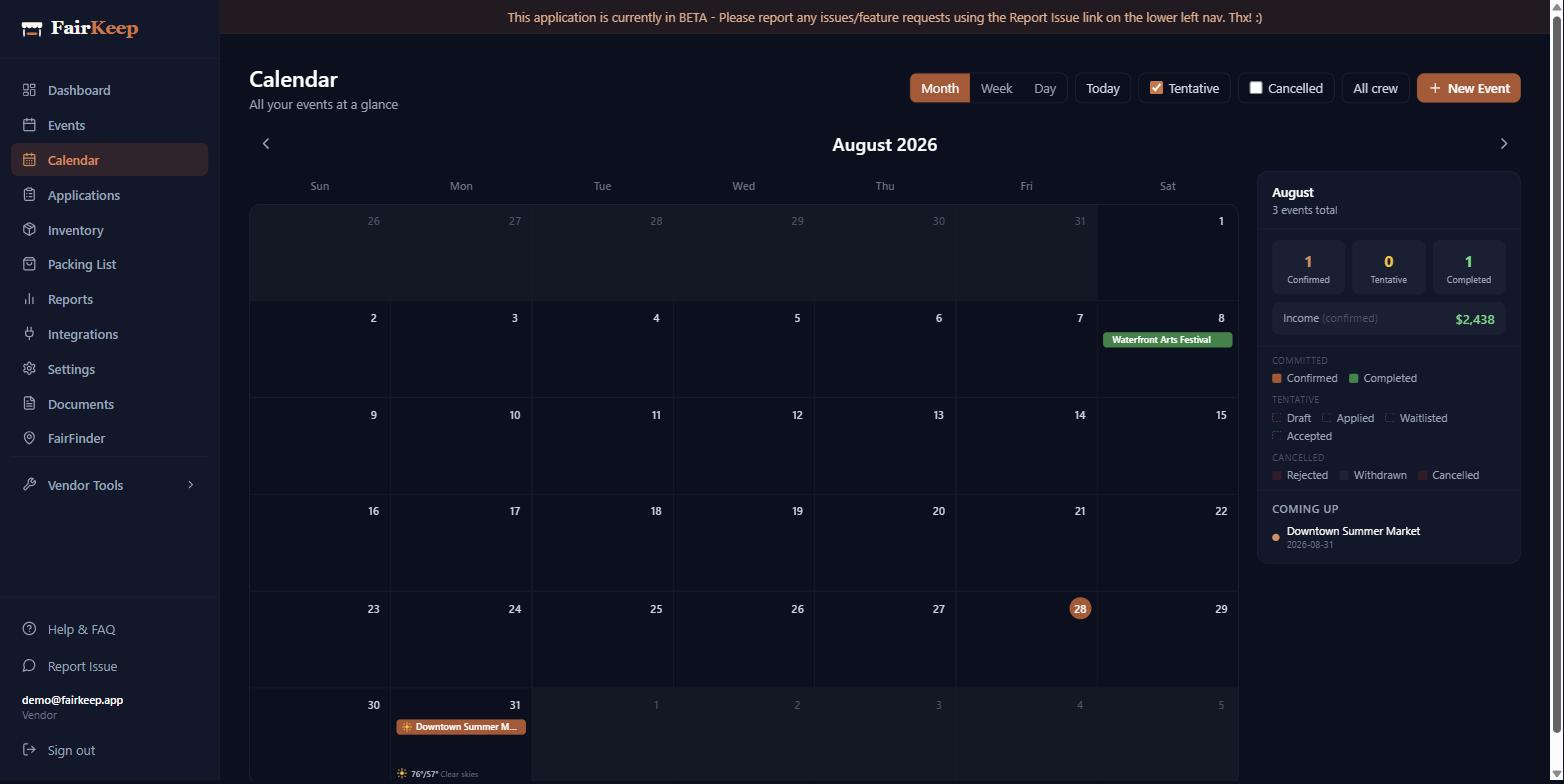
Getting Started
View your events calendar
Use the FairKeep calendar to see every event and application at a glance — solid for committed, dashed for tentative, muted for cancelled — and quickly jump to any event detail.
- 1Go to Dashboard → Calendar.
- 2Events show in three visual tiers: a solid fill means committed (confirmed or completed), a dashed outline means tentative (draft, applied, waitlisted, or accepted), and a muted, struck-through look means no longer happening (rejected, withdrawn, or cancelled).
- 3Click any event on the calendar to jump to its detail page.
- 4Use the month navigation arrows to browse past and future months.
- 5Use the "Tentative" and "Cancelled" toggles above the calendar to show or hide those tiers on the grid — the summary panel still counts everything, so you can see how much is hidden.
- 6Use the crew filter to show only events assigned to specific team members. Assigned crew appear as initials on month chips and full names in the week/day and detail views.
- 7Need a custom date span instead — say, the next six weeks, or a specific trip? Switch to Range, set From and To, and every show in between shows as a simple list you can scroll.
Related guides
Track your first event
Learn how to log an event in FairKeep — from entering the show details before the event to filling in income and expenses afterwards.
Use the applications tracker
Manage every market application in one place — log it when you apply, update the status as you hear back, and convert acceptances into full event records.
Assign crew members to events
Assign specific team members to individual events so crew only see their own schedule, and filter events by crew member.