All guides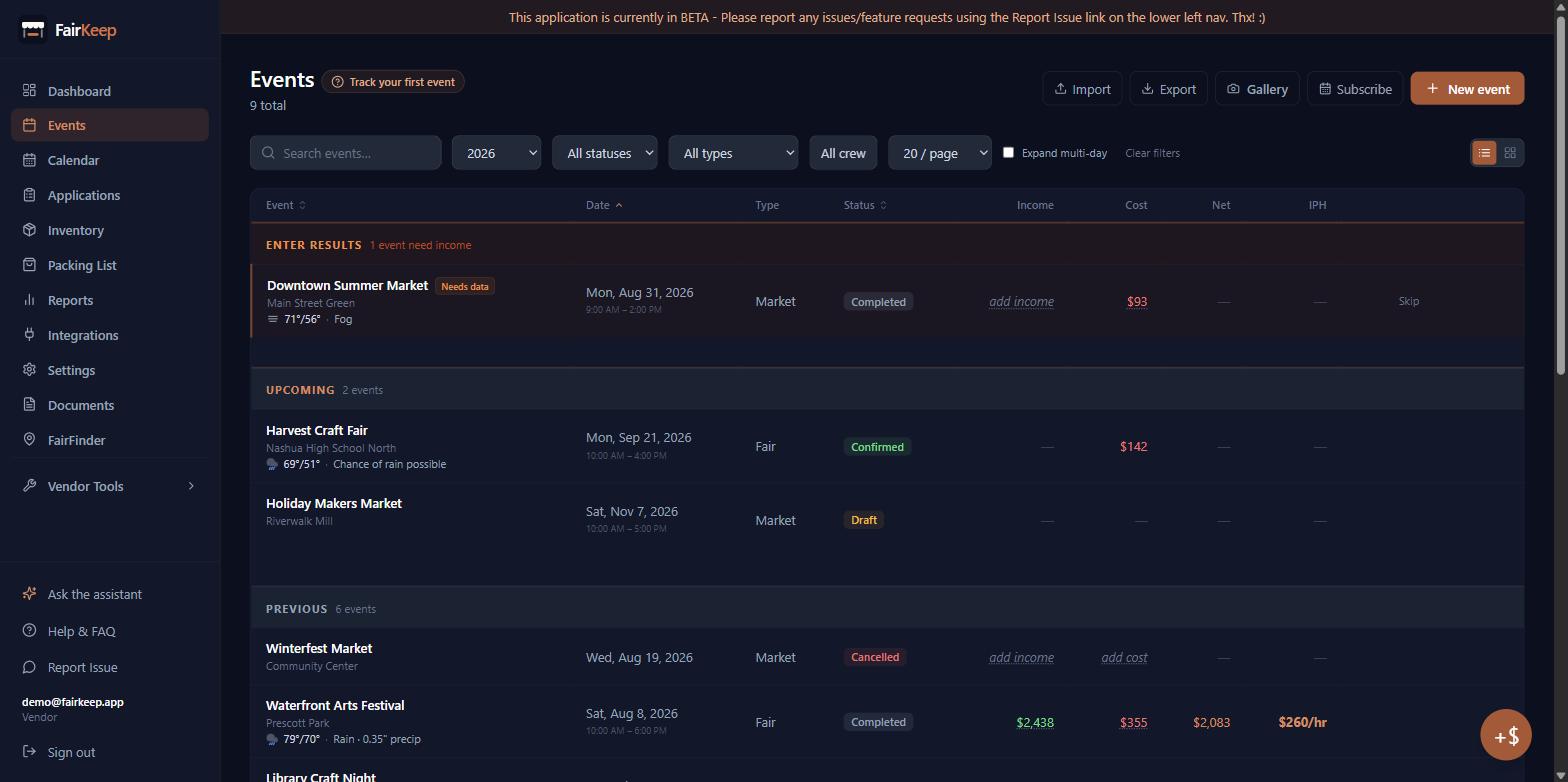
Getting Started
Find your way around: the full set-up
A tour of everything FairKeep can do once all the features are switched on — and which of them you actually need.
- 1Everything in the simple tour still applies: Dashboard, Events, Calendar, Reports and Settings are the backbone. This adds the rest. You do not have to use all of it — Settings → Features lets you hide anything you do not want cluttering the sidebar.
- 2APPLICATIONS is the stage before an event exists. Track what you have applied to, the deadlines, and whether you are accepted, waitlisted or rejected. When one is accepted, promote it straight onto your calendar — a multi-day show splits into one event per day. You can copy a whole season forward to next year.
- 3INVENTORY counts what you take to a show and what comes home, one session per show, and works out what sold and what needs restocking. Sync your product list from Shopify, Etsy or Square instead of typing it.
- 4PACKING LIST is a reusable checklist with your own sections, so you stop leaving the card reader at home.
- 5TEAM is your crew roster. Add people, set roles, assign them to events, and leave crew notes they can see. Crew members get their own stripped-down view with just their events, the packing list and documents.
- 6DOCUMENTS stores contracts, permits, insurance and organizer PDFs, with control over which team members can see what, and optional linking to an event.
- 7INTEGRATIONS connects Shopify, Etsy, Square, QuickBooks and Google Calendar. This is what lets FairKeep pull real sales figures against a show instead of you typing a total.
- 8The Shopify, Etsy and Square pages are full dashboards for each connected store. The matching Reports tabs combine those sales with your FairKeep events and remove the overlap, so a market you logged by hand and its POS orders are not counted twice.
- 9FAIRFINDER (in the sidebar) helps you find markets to apply to. VENDOR TOOLS is a set of small free calculators — sales tax, margins, marketplace fees, break-even, change, QR codes, price tags — that open in a pane beside your work.
- 10Reports gains its Expenses and Other Income tabs here: itemised expense lines, and money that did not come from a show.
- 11Worth knowing: a booth fee spread across a season is stored as the season total on every date and divided at display time, income per hour can optionally count setup, breakdown and drive time, and internal-only events stay off your public vendor page while still counting in every total.
- 12If it is too much, switch to Simple in Settings → Features and turn things back on one at a time as you need them.
Related guides
Find your way around FairKeep
A tour of the simple set-up — Dashboard, Events, Calendar and Reports — what each one is for and the order to use them in.
What each report tab shows you
Nine reports, and which question each one answers — what is counted, what is deliberately left out, and where the numbers come from.
Connect integrations
Link FairKeep to Shopify, Square, Etsy, or QuickBooks so your event and sales data stays in sync automatically.
Set up your team and crew roster
Add team members, assign roles, set permissions, and store employee details securely in FairKeep.